
Quick Start
A walkthrough of your first analysis, from signing in to downloading your results.
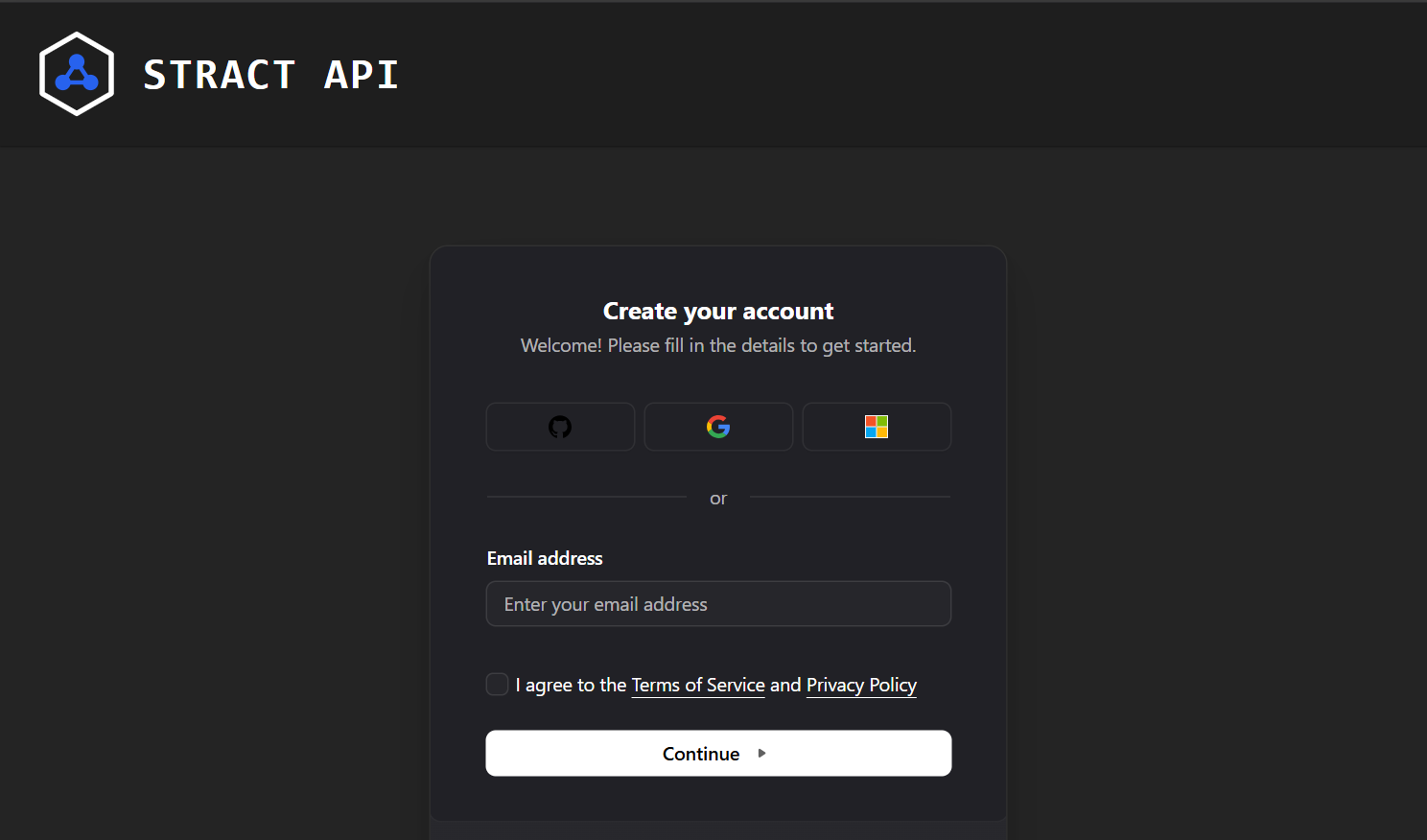
Head to the Stract API app. Pick a sign in option and follow the prompts. After finishing sign in, you will see a home page with the word "Struct" at the top.
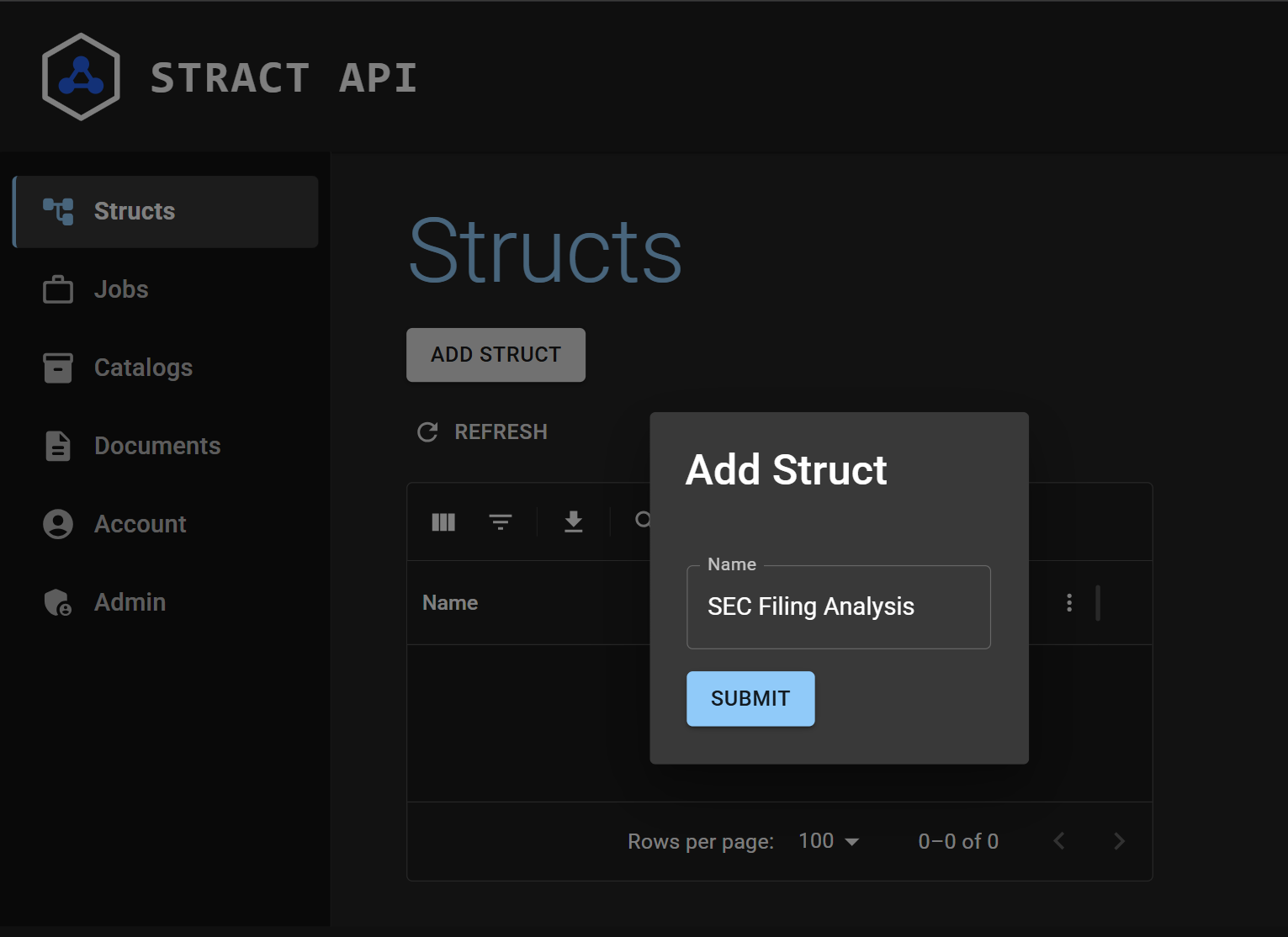
"Struct" is shorthand for data structure, i.e. the information you want to get out of your documents. Create your first struct by giving it a name that describes the analysis you want to perform. For example, I want to analyze SEC filings, so I named my struct "SEC Filing Analysis". Once it's created, Stract opens the struct's page, where its fields will be listed. It starts out empty because a new struct doesn't have any fields yet. Our next step is to add them.
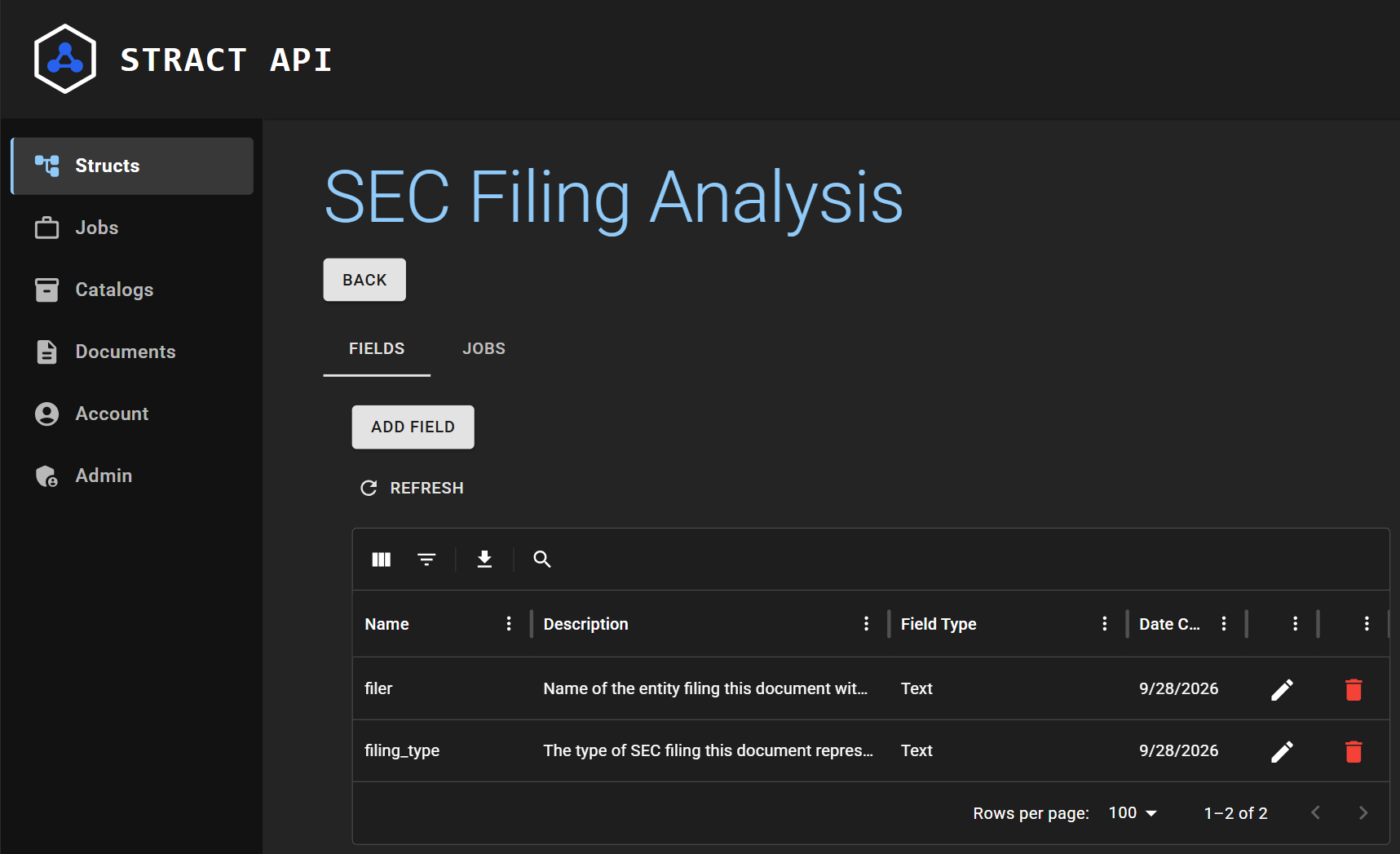
A field is an individual piece of information you want to extract. For instance, in our example SEC filing analysis we will want to pull what type of document was filed and the name of the filer. When you create a field, make sure that you give it a descriptive name and add a description that would help the typical person collect the information you are looking for. A brief and accurate description helps the AI find the information you are looking for.
When you've finished adding fields to your struct, click on "Catalogs" on the left side of your screen.
Documents are anything you want to analyze. These can include PDFs, work documents (pptx, xlsx, etc...), scans, raw text, user input; in general, anything with text in it.
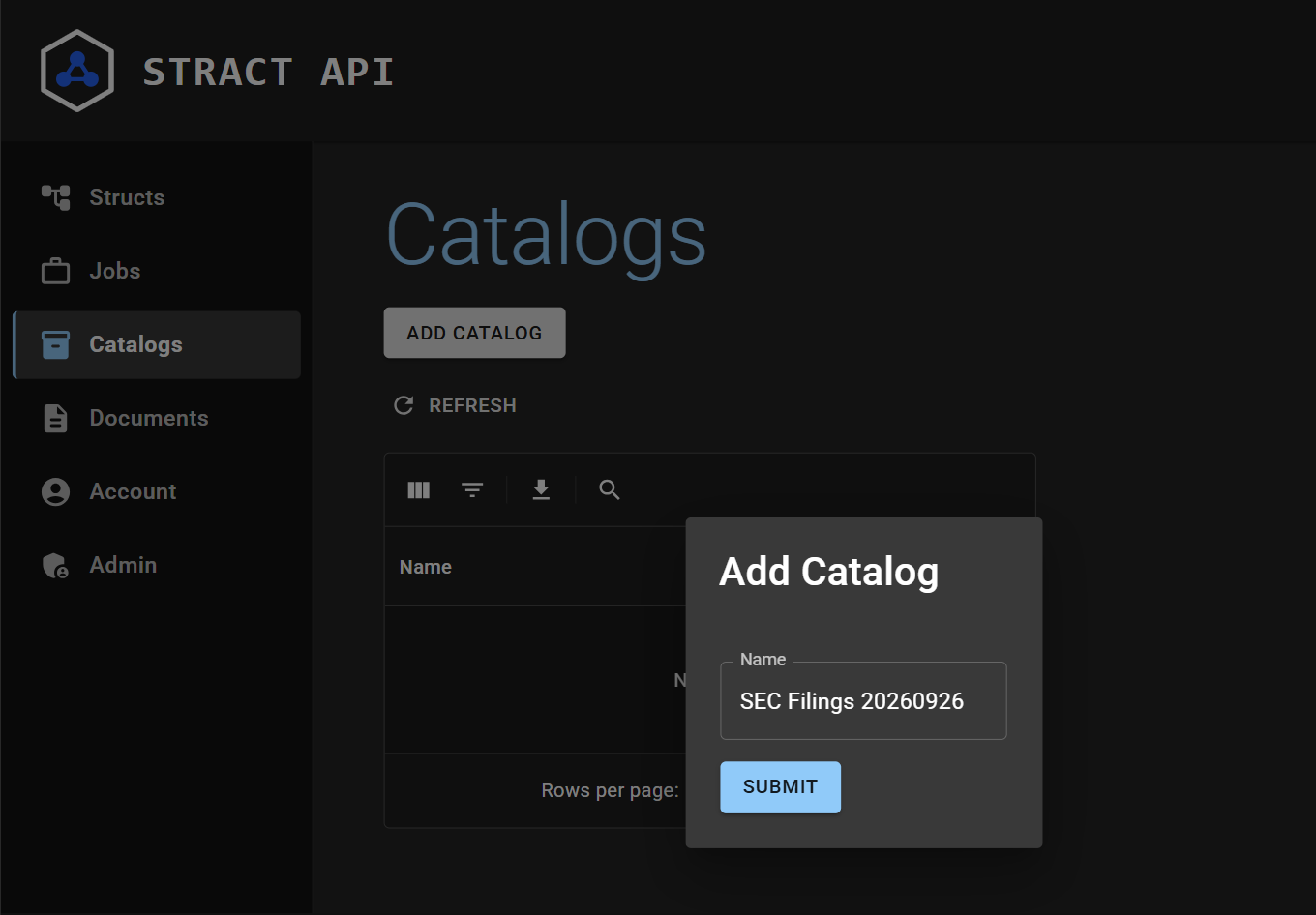
On Stract, you will organize your documents into catalogs, which are kind of like folders on your computer. Make your first catalog by clicking on Add Catalog. Use a name that describes all of the documents in the catalog. Once it's created, Stract opens the catalog's page, where its documents will be listed. Like a new folder, it starts out empty until you add documents.
You can add documents to your catalog by clicking on "Add Documents", then selecting as many documents as you want to add. Wait until all have been uploaded. Some documents need to be processed before they can be used in the AI analysis; you can see the document's processing status in the table.
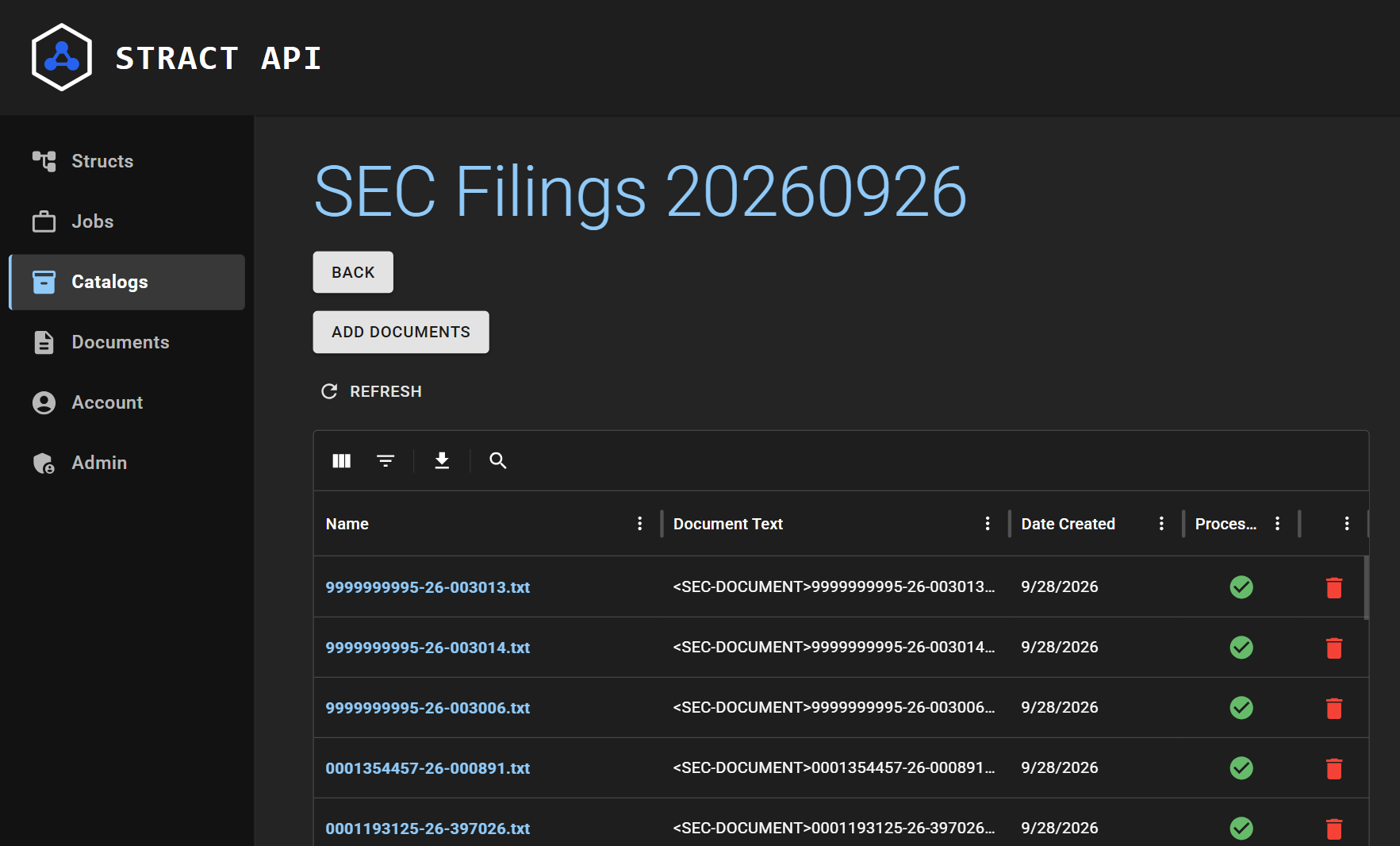
When your documents have finished uploading, click on "Jobs" on the left side of your screen.
Jobs are when the AI analyzes your documents and extracts the information you want. Every job must include two things:
- The information you want (i.e. select the struct)
- The documents you want to analyze (i.e. select a catalog or select a group of individual documents)
Click on Add Job and fill out the information with the new struct and catalog we just created. If you have additional instructions or guidance that the AI might find helpful, add it as well.
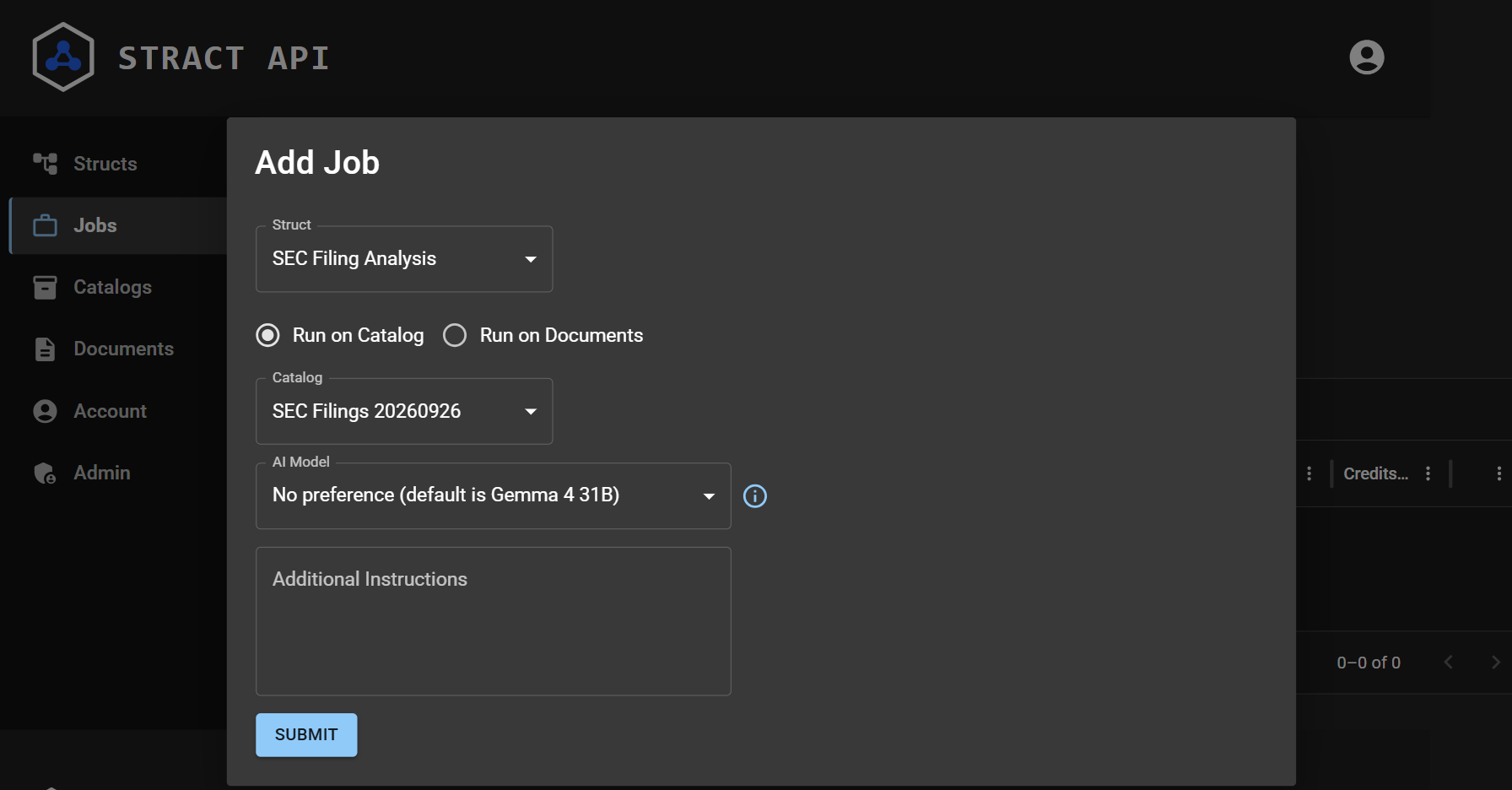
You can also select which AI model you would like to use. If you select "No Preference", Stract will use a capable and cost effective default option.
Once you submit your job, you will be brought to the Job Detail page, which will track your job's progress in real time. Here you can find information about how many documents still need to be processed, how many credits you've used and the status of each document in queue.
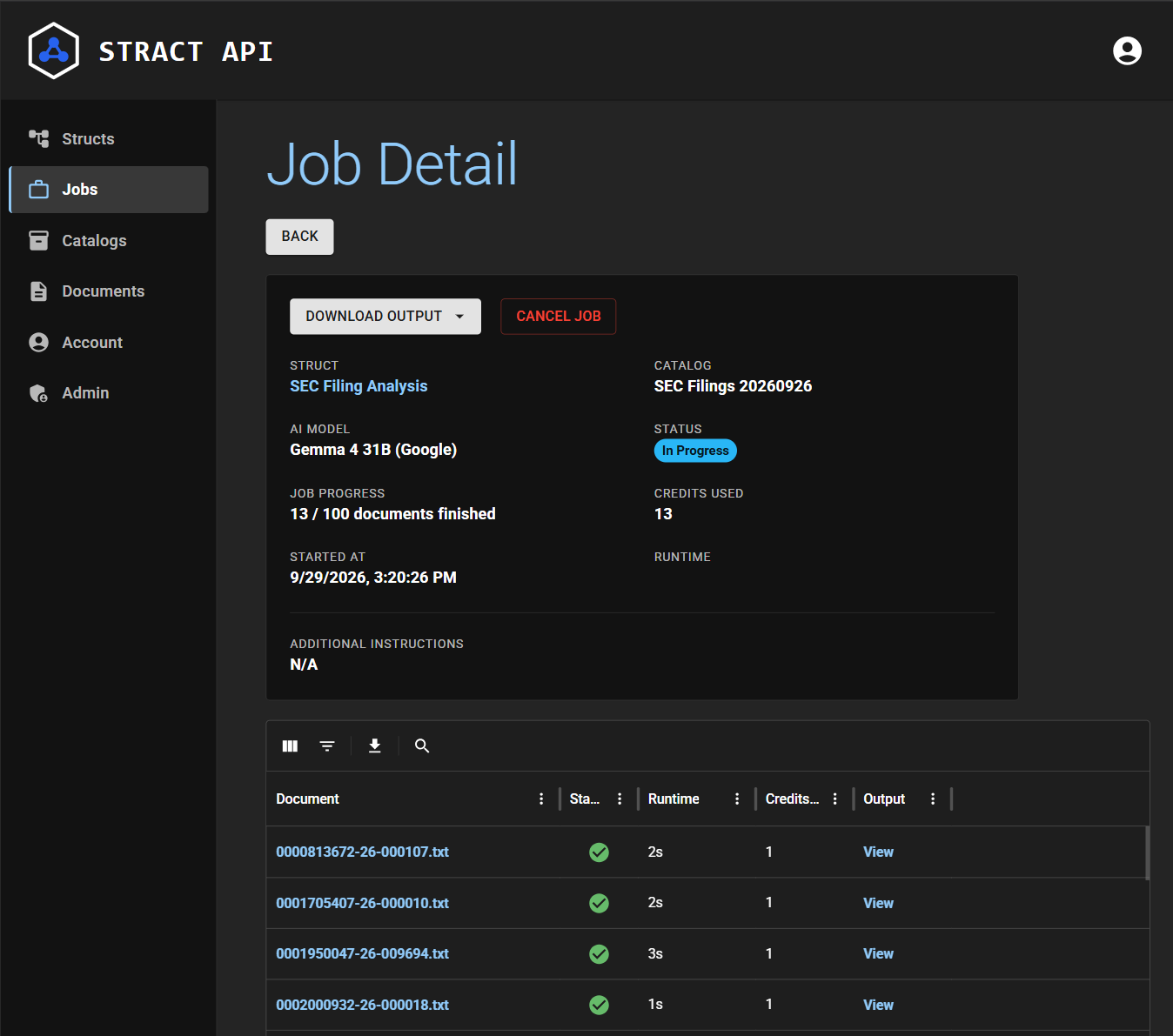
Come back to this page periodically to check on your job's progress.
Once your job has finished, you can download the extracted results as CSV or JSON. From the Job Detail page, simply click "Download Output", select which data format you want, and the download should start instantly. For this example, I downloaded a CSV file and imported it into a spreadsheet application.
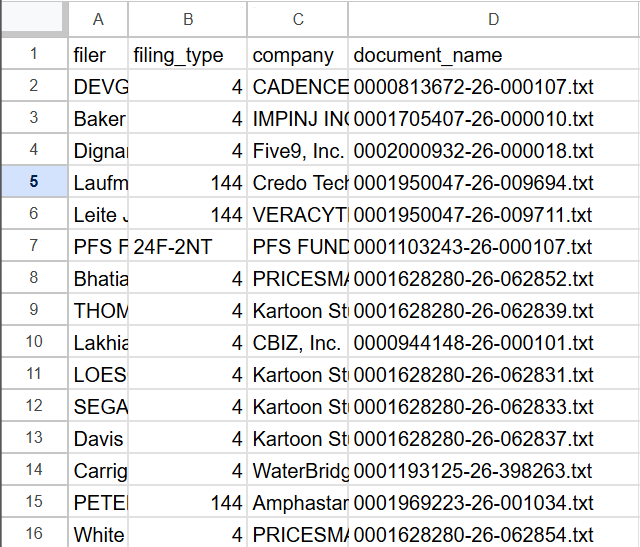
Completing your first Stract analysis is as easy as that. You can reuse your struct to analyze new documents you upload, or similarly you can add more fields or structs to perform new analyses on your existing documents. Stract makes it easy to extract the information you need.